Microsoft Word – Hide Margin Lines in Corners?
I started off with this problem of Microsoft Word complaining about “Macros in this project are disabled” whenever we tried to paste into the document. I fixed this by resetting the default document template, enabling all macros, and restarting Word. (I think just restarting Word would’ve worked. If you have this problem, try that: and accept the macros that pop up, assuming you know what they are. Make sure you have up-to-date antivirus protection.)
Now I’m noticing these annoying lines at the corners of the document in Print View.
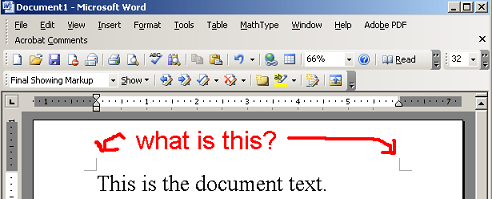
What are they? How do I hide them? I looked through the View menu and tried searching the Word Help and and Google, and I couldn’t find it (how embarrassing!). But hey, I’m willing to ask, so– do you know?
Was having same problem. Thy this:
http://support.microsoft.com/kb/839371
When I removed the enabled languages shown below, the corner marks disappeared.
Chinese (traditional)
Chinese (simplified)
Japanese
Korean
email w/ any questions
Bill
[email protected]
I have checked all avenues and there is only the English language enabled. This is so frustrating because I have no idea why this happened all of a sudden. Please advise if possible.
I try but I didn’t find how can i enabled languages.
[…] since. It’s just an obsession, though. I do it because I know I’m making the world a better place (just look at the comments! And I suspect that most people don’t […]
Thanks, usefull for me. I didn’t find the way to disable thats marks.
Very useful (I had to remove the Japanese language). Thanks.
{sign} I had this same problem and I was so irritated. It was becoming an obsession. Then I did what Bill and Ste said, I went to Microsoft Language settings and removed the japanese and korean language…worked for me.
I have Word 2005, I’ve lost my top and bottem margin and I can’t figure out how to get them back again. When I print the document they show up in the in the printed version but when I start a new document on screen, they are still missing. Please tell me how I can get the top and bottem margins to appear again on screen. Thanks, James
double click the line connecting the page and it should separate the pages again and you can see the margins
Theres something wrong with your language setting.
Go to start –>programs –> microsoft office –> microsoft office tools settings. Then you simply just remove the language you dont wont. The margin lines will disapper.
i don’t know why a language setting would make that happen, but that worked perfectly. thanks!
Tonai – I had the same issue, and I’m equally perplexed by the solution, but it worked perfectly for me too (as one would expect) – thanks a lot.
PP
Unbelievable… this is the exact solution. Thanks a lot!
Thank you Elliot and Bill Smith! Funny problem, and a funnier solution!
Many many thanks, solved the problem!
Guyssssss !!! its not a Language issue ..
to solve it .. go to :
“Office Button” .. then “Word options” .. “Advanced” .. then scroll down to
“Show Document Content” .. and Uncheck “Show Crop Marks”
thats it !!!!!
thank you that worked for me. I was having trouble with the margin lines being shown, but I fouind out how to get rid of them with your comment.
@Shady – That was a the perfect fix for me, especially since I have to use both Japanese and English for my job.
THANK YOU.!!!!!eeeeppp im so glad i found a solution and it’s all because of YOU.!!idk wtf those other people were talkin about with languages and stuff but you helped me alot haha thanks..again :))))))
where is “OFFICE BUTTON” ???
Thank you! Solved the problem.
Thats the one I needed, Thank you. This issue started in my 2007, and I just upgraded to 2010 thinking maybe they would go away, ha…of course they didnt. But thank you for the REAL solution to this.
THANK YOU Shady! The language thing didn’t work, they are crop marks!!
Shady – THANKS! I was working with a user and could not figure it out for the life of me how to remove them.
Many thanks, mate!!! It was really helpful!!!
This works. Be careful on number 3. I think that is why is is not working on some: “In the View tab, under Print and Web Layout options, verify that the Text boundaries check box is selected.
If the Text boundaries check box is selected, click to clear the Text boundaries check box.”
I think people are missing the second part about clearing the check box since the first part says to verify that it is checked.
Amazing! It worked – no idea how it happened in the first place, though. But many thanks!!
it work!
Multumesc frumos
This was useful for me, too. Just appeared out of nowhere after I adjusted some language settings. But even when I reverted to the original language settings, they were still there. The office button suggestion worked. Thanks!
^^^ TRUTH