Microsoft Word: Remove Email Toolbar
There was a giant email toolbar that appeared in my instance of Microsoft Word 2002 (correction: Microsoft Word 2003), and turning off all of the toolbars would not remove it.
It’s not immediately obvious how to do it. I searched Google, but there were no good answers on the first page of results. Luckily, it also showed on Groups results, where I found my answer: “Click the E-Mail button on the Standard toolbar to turn it off.”
Here’s a screenshot:
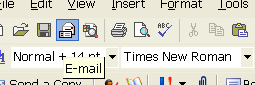
Click that E-mail button, and it’ll disappear. It’s a really stupid design, since it’s inconsistent with the other toolbars. And although it has a “move” draggable area on the left, you can’t actually pull it off and reposition it somewhere else on your screen. It’s pretty much stuck there.
Hope this helps someone.
This problem was frustrating me. Excellet tip. Thanks.
Thanks to you Elliot! I agree with you its VERY inconsistent! :) I was pulling my hair until I foudn your helpful note! Thanks!
Thanks for the tip… I’m glad you posted this little pointer. FWIW, it only showed up in one of my docs, which made it even more annoying!
Cheers!
Cheers, that stopped me pulling what’s left of my hair out. ;@)
Yes, me too. Thnx
Thanks! A co-worker was very perplexed when he recieved an attachment with this toolbar.
Thanks for coming through with the “fix” when MS help was useless!
great help!
Oh my gosh thank you SO much, that email thing was bugging the CRAP out of me and I’m pretty savvy with computers so it was killing me that I couldn’t take it off myself! Your advice was very helpful! Thanks again!
Tiffany ^_^
Thank you very much! It was taking up way too much space and I couldn’t figure out where it came from. Good riddance!
Doh! Maybe because I use small icons? I also wasted far to much time trying to stomp this toolzilla.
thank you mr. lee! i felt like i had some sort of acute visual impairment when this enormous email section appeared… course I couldn’t find any toolbars etc. to turn it off, until i read your page.
Thank you :)
Thanks! I told someone at work that the online help for Microsoft Word wasn’t getting me anywhere and knew that I could get results via Google. Your fix was the first return on my search. Thanks for saving me time!
Elliot, thank you very much from Managua, Nicaragua.
I had been “googling” for a fix to this problem but hadn’t found any, though some of the results had proven to be amusing if unrelated reading…
Thank you again, and good luck!
I’m running Word 2002 and it didn’t work. That icon is grayed. Any other suggestions?
tks elliot. lifesaver.
tks microsoft. for wasting 5 mins of my time. grrrr
If the E-mail button is grey (non clicable) or if it doesn’t exist.
It most likely that you don’t use Outlook as your default Email client.
Go to Internet Options -> Programs and select Outlook (or Outlook Express) as your default Email client, click Ok.
Launch your Word document, you’ll see the little button appears, or go to File->Send to -> Mail recipient to turn the tollbar Off.
wow, this is great!
i googled “remove email from microsoft word document” and you were first on the list :)
anyway, this was very helpful, so thanks!
Thank you so much – I have had this wretched toolbar up for months!
Thank you!
Looks like this is the gift that keeps on giving :)
I also searched and this came up #1. So glad, because it was actually helpful (unlike MS Word help).
I didn’t have my Standard toolbar on, so once I selected that, I could see.
Cheers!
Your help is still needed! Thanks!!!
Thanks for the tip. It had me stumped. You’re advice is still helping people many years later. Cheers.
Thank god for your tip! So frustrating!
It helped me……