ThinkPad Keyboard Beeps Fixed
I’ve discovered the fix to the elusive keyboard beeps which occurred whenever I pressed certain combinations of three (3) keys. Using experimentation, I came up with this rule:
The computer beeps when I press any three key combination all in the same row including at least two of these keys: 4567rtyufghjvbnm.
Some Google searching found me the fix in a ThinkPad mailing list. At first, I thought they were talking about Linux. But no, it was Windows, and yes, it worked. Another person blogged it too (the original link to his blog was broken, so I feel it is especially important for me to blog it and clarify the instructions). Here’s what you do:
1. Open the Device Manager. You can do this from My Computer -> Properties -> Hardware -> Device Manager.
2. Show Hidden Devices. You can do this from View -> Show hidden devices. This is where I was stuck: I didn’t know the Device Manager had hidden devices.
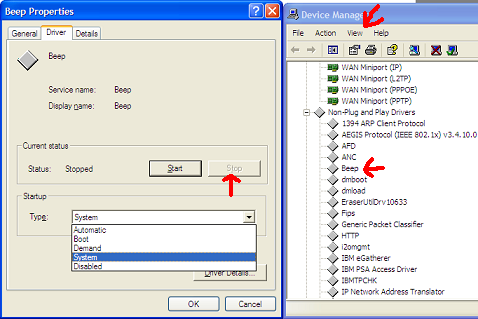
3. Under Non-Plug and Play Drivers, open the properties for Beep. Go to Driver -> Stop, and the beeping will cease. I think you can also Disable the device, but for me, this would require a reboot.
I believe the Beep device is the most stupid device ever invented. It’s really the stupidest. It serves only as an annoyance, in very strange instances. And I’ve only seen this on the ThinkPad, after using lots of other computers.
Can anybody explain to me why this beep even exists?!
Anyway, I hope somebody found this interesting, or maybe, if you had one of the beeping ThinkPads, found it useful. I’m on a Z61t by the way.
Update: I reinstalled Windows Vista on my ThinkPad and had the same problem again. The steps are similar, but here are updated Vista screenshots to ensure nobody’s confused on what they’re looking for to fix this. Sorry for the low quality, but Microsoft Paint doesn’t compress images very well.
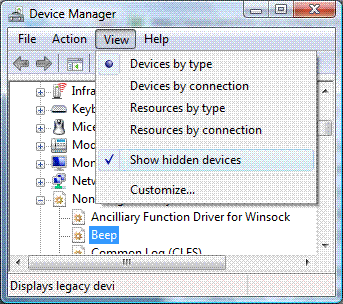
Make sure you select “Show hidden devices”.
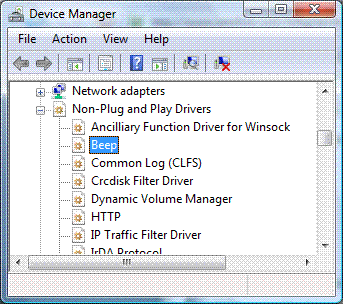
There’s that dreaded beep, listed under “Non-Plug and Play Drivers.”
Instructions for disabling the browser forward and back keys are here:
http://forums.lenovo.com/t5/T400-T500-and-newer-T-series/How-to-disable-quot-Browser-Buttons-quot-Browser-Keys/ta-p/432917
\cf http://forum.lenovo.com/t5/W-Series-ThinkPad-Laptops/W500-Disable-page-back-page-forward-keys/td-p/202882
[…] jag hittat, men helt utan resultat.Tills i dag. Med nÃ¥got helt annat i hÃ¥gen rÃ¥kade jag plötsligt snubbla över ett gammalt blogginlägg där orsak och lösning presenterades.Orsaken heter Beep. Beep är en drivrutin vars egentliga […]
Awesome. Couldn’t believe this function is there preset!
Cheers
Thank you very much for this very useful help.
The beep struck my ears painfully when I was listening to something on the headphones and hit accidentally several keys at the same time. I somehow had to stop the beep, and I thought I would have to change BIOS settings. But this way is muuuuuch easier.
Thanks,
Christian
Thanks, this fix worked great on Windows 7 also. Control Panel to Device Manager, Show Hidden devices, then the rest was fine. It would not let me stop the driver, so I used the disable function (which did NOT require a reboot).
Now I can use laptop this in a meeting without embarrassing myself, Microsoft, and Lenovo!
To be deep in thought and have this beep jolt me was like having a mini heart attack.
One Google search later and here is the answer.
Thank you so much!
Thanks!
I take notes in lectures at university for blind students.
This beep on my thinkpad x121e has been the cause of many embarrassing interruptions to the lecturer,
randomly happening whenever i type too fast.
Great tip.
thank you! this annoyed me for years… :-) now i can silently use my netbook while my girlfriend sleeps aside me on the sofa …
It doesn’t just beep, it ignores whatever keys are pressed after the limit is reached. This is EXTREMELY annoying when typing quickly, I always get keypresses skipped on my Lenovo. I’m absolutely sick of it, there has to be a way to disable the root cause for the beep, not just the beep. The beep just means an error was caught, there has to be a way to make this thing stop detecting that as an error.
Thanks for this. What a strange “device,” maybe it’s some sort of debugging that got left in?
thanks a lot ! it was so annoying, to hear this \beep!\ with every notification in every program.
cheers!
i noticed this beep occurs when you press 3 key at a time. anyways, thanks a lot, i really needed this!
Thank you Elliot, this was really helpful (cause the beeping was sooo annoying, apparently I press three keys at the same time at least once a day) and worked perfectly well also on Windows 7.
Hi there,
I am using Lenovo B590 and, as many of you, am bothered by this stupid beep. I followed all of the steps but the problem is my Device Manager doesn’t show Non-Plug and Play (not even if I click Show hidden devices) – it’s not there, at all :( I’ve tried all the views and nothing. Any suggestions? I’m using Windows 8.1 Pro.
Thank you for all your help!
There is no nonplug and play drives listed, even after showing hidden devices. Is there an alternate solution to making the beep stop?
Pleeaaase someone help me! I’m using Windows 8 and the Nonplug and play thing doesn’t exist. I can’t use FL studio with this annoying beep, is there a way to stop it differently??
I think the beep is included to diagnose/identify total keyboard failure (short circuit). I know this because I totally killed my keyboard with a spilled drink (no function except power button), and went to google how to stop the beep
Unfortunately, I found no ‘Non Plug and Play’ devices in the Device Manager. However, I did continue to search and found that under Accessiblity Options, Change how my keyboard works, uncheck the boxes for Toggle Keys and that fixed it for us…
Thanks a lot Elliot,
i found you three years ago, but forget it and i just needed you again today, because of reboot, and you’re still here to help me !! be blessed for that ! (but i copy your page, now i will be able to do it again and again and again…) i disabled all the possibly sounds and beeps of the computer but it was remaining…
you possibly save my patience, and my wedding !
thanx for your website and for your explanations and for your pictures !! because i’m french and the pics helped me a lot !!