ThinkPad Keyboard Beeps Fixed
I’ve discovered the fix to the elusive keyboard beeps which occurred whenever I pressed certain combinations of three (3) keys. Using experimentation, I came up with this rule:
The computer beeps when I press any three key combination all in the same row including at least two of these keys: 4567rtyufghjvbnm.
Some Google searching found me the fix in a ThinkPad mailing list. At first, I thought they were talking about Linux. But no, it was Windows, and yes, it worked. Another person blogged it too (the original link to his blog was broken, so I feel it is especially important for me to blog it and clarify the instructions). Here’s what you do:
1. Open the Device Manager. You can do this from My Computer -> Properties -> Hardware -> Device Manager.
2. Show Hidden Devices. You can do this from View -> Show hidden devices. This is where I was stuck: I didn’t know the Device Manager had hidden devices.
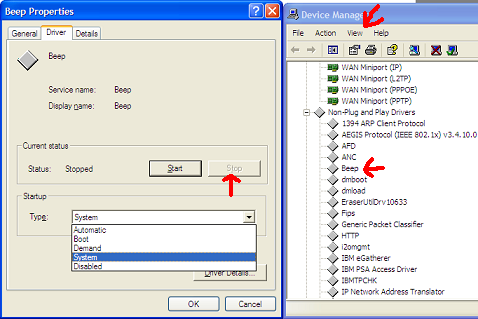
3. Under Non-Plug and Play Drivers, open the properties for Beep. Go to Driver -> Stop, and the beeping will cease. I think you can also Disable the device, but for me, this would require a reboot.
I believe the Beep device is the most stupid device ever invented. It’s really the stupidest. It serves only as an annoyance, in very strange instances. And I’ve only seen this on the ThinkPad, after using lots of other computers.
Can anybody explain to me why this beep even exists?!
Anyway, I hope somebody found this interesting, or maybe, if you had one of the beeping ThinkPads, found it useful. I’m on a Z61t by the way.
Update: I reinstalled Windows Vista on my ThinkPad and had the same problem again. The steps are similar, but here are updated Vista screenshots to ensure nobody’s confused on what they’re looking for to fix this. Sorry for the low quality, but Microsoft Paint doesn’t compress images very well.
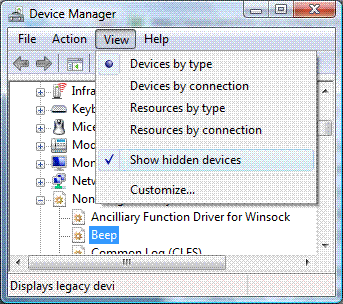
Make sure you select “Show hidden devices”.
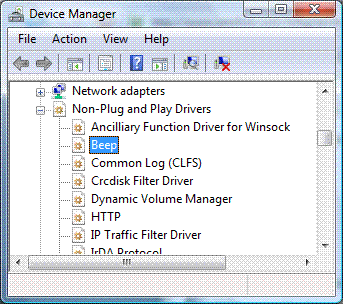
There’s that dreaded beep, listed under “Non-Plug and Play Drivers.”
you’ve possibly added years to my life
Thanks! That has been haunting me out for years. I’ve had a different thinkpad laptop at my last three jobs – all waiting to pounce on me with a loud BEEP when I least suspect and when I -was- being the most productive,
ive had to deal with that damn beeping for over than 4 years now, thank god its gone, finally gone!
Thank you so much !
Thank you so much! This is a lifesaver of a tip! What a ridiculous feature. Now I’ll finally have quiet typing (and also quiet computer-game-playing time). Thanks again!
thanks. also gone on windows 7 as per your instruction.
really helpful. no beeeeeeeeeepppklasjdAÖlakjdji LOL
many thanks
Thanks man,
your awesome
that sh*tty beep will never ever blow my eardrums out while on earplugs.
your da man
Thank you! I have hp 625 laptop with a swedish layout and my computer beeped whenever I typed a colon with a right parenthesis, i.e.: a smiley! It was crazy annoying. Anyway, stopping Beep worked nicely. (I got a warning about Windows not being able to stop it in a timely manner, but it did stop eventually)
Thank you!!!!! Have been immensely close to heart attacks due to that BEEP when using headphones.
Still a very useful article even so many years later!
Been linking to it from my blog for some time now:
http://www.davidov.net/blog/index.php%3F/archives/4-The-IBMLenovo-Thinkpad-T60-and-the-annoying-beep!.html
Take care,
Phil
Awesome cluez!
BEEP exists because….
um…
to get to the other side?
I`m happy!
YOU! ARE! MY! HERO!
Thank you!!!!
It’s also possible to fix this by entering the BIOS, going under the “Beeps and Alarms” heading, and turning off the keyboard beep.
Dave from SF is wrong – i have all beeps disabled and i still was getting this!
the beep was probably the most annoying in the world after the iraq war.
Amazing! Five years after the original post and Thinkpads still have useless annoying beeps.
Thank you thank you!
The beep is especially annoying when I have my headset on.
Now my ears can rest in peace.
Thanks for the post!
Thank you so much for posting this, solve my headache, wish could see this earlier. glad that the beep wont thrill me and my classmates in class anymore! Truly a dumb design for thinkpad
Thank You!
GREAT!!! YOU ROCK! THANK YOU!
Thank you! You’re my hero!
thanks a lot. What a stupid feature!!!
Actually, I try this method and it worked until the reboot (LenovoT400). I found a simpler way to get rid -forever- of this stupid and stressing beep.
After select “Show hidden devicesâ€> right click on “beep” and Windows will propose you if you want to delete it…
Now I will be on a quest to delete this beep on all computers that will be near me (starting with my wife’s).
Great – Thank you.
Acutally there is an option in the BIOS to disable the beep. But even after disabling it there it didn’t stop that thing from beeping. But due to your help it stopped working like a charm.
Do you happen to know a solution for disabling the next page/last page buttons above the arrow keys?